Desktop Agent Settings
The Desktop Agent settings are accessed by right-clicking the Synapse Desktop Agent  in the system tray and then selecting Settings...
General
You can access General settings for the Desktop Agent.
Steps
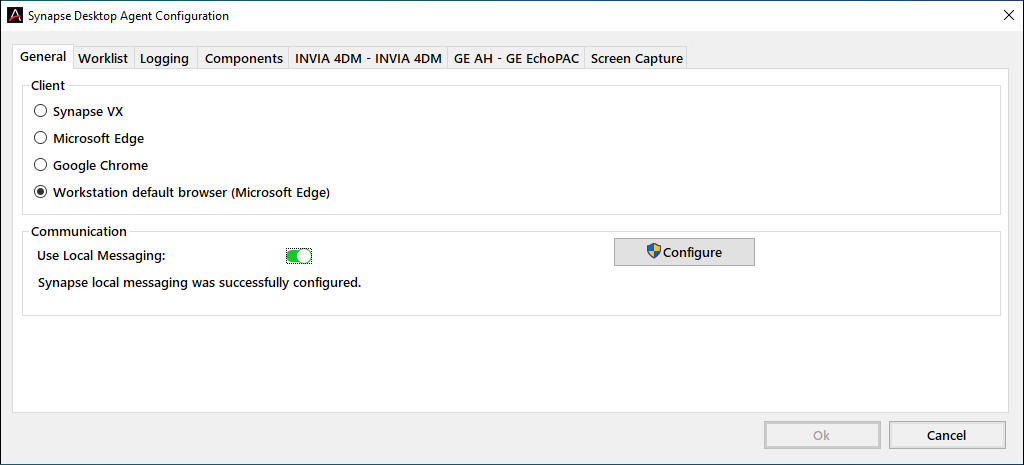
- Right-click Synapse Desktop Agent in the system tray and select Settings. The Synapse Desktop Agent Configuration dialog displays.
Local Settings
All Desktop Agent and third party applications settings come from the server. However some user preferences can be set locally. The settings visible in this dialog box are saved in the registry in:
HKEY_CURRENT_USER\Software\Fuji Medical Systems USA\Synapse\DesktopAgent
Setting the Client
This setting controls which client the Desktop Agent will use to launch Synapse. The choices are:
- Synapse VX (displays when Synapse VX is installed)
- Microsoft Edge
- Google Chrome
- Workstation default Browser. The current default displays in parentheses.
|
Note: |
|
Communication
Configure
The Configure button displays if Local Communication is enabled and the datasource is configured to use HTTPS. Clicking the button installs a new certificate and configures HTTPS Local Communication for the current user. Prior permissions are preserved. This button only needs to be used if the current user cannot use Local Communication with HTTPS. Administrative privileges are required.
|
Note: |
The Configure button displays only when a secure connection (HTTPS) is in use, is active, and the Use Local Messaging is enabled (checked). |
For advanced information about the self-signed certificate and permissions to use it to create an HTTPS listener, see your Administrator.
Worklist
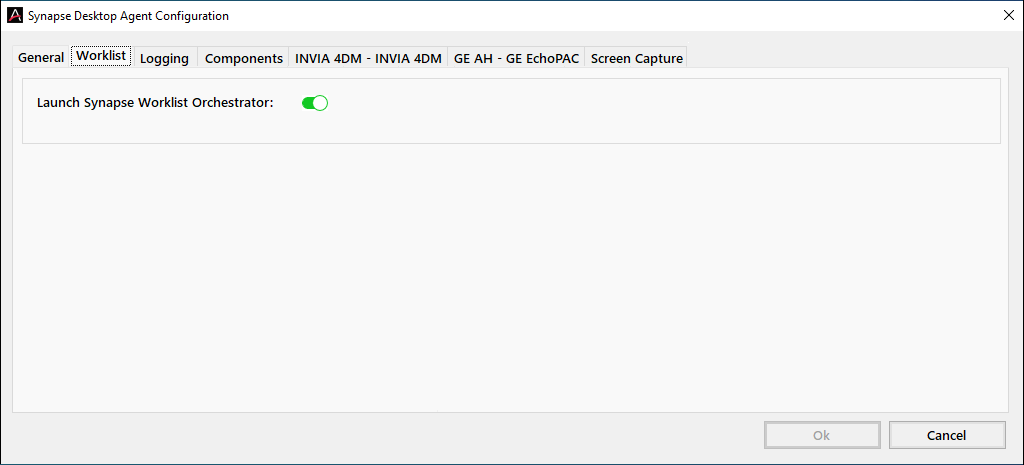
The Launch Synapse Worklist Orchestrator setting enables the Launch Synapse Worklist Orchestrator menu item on the Desktop Agent icon menu in the system tray.
The Worklist tab provides the ability to launch the Synapse Worklist Orchestrator automatically. The default is disabled.
|
Note: |
If this option is used, it then overrides and takes prescience over the Use Synapse Worklist Orchestrator by Default SWAT setting. |
Worklist Orchestrator
When Worklist Orchestrator is configured for use, RealTime Medical (RTM) must also be configured in SWAT on the Using the Desktop Agent page using the following settings:
- Name: Synapse.Agent.RTMConnector
- Component Name: RTM Connector
Logging
Synapse Client Logging
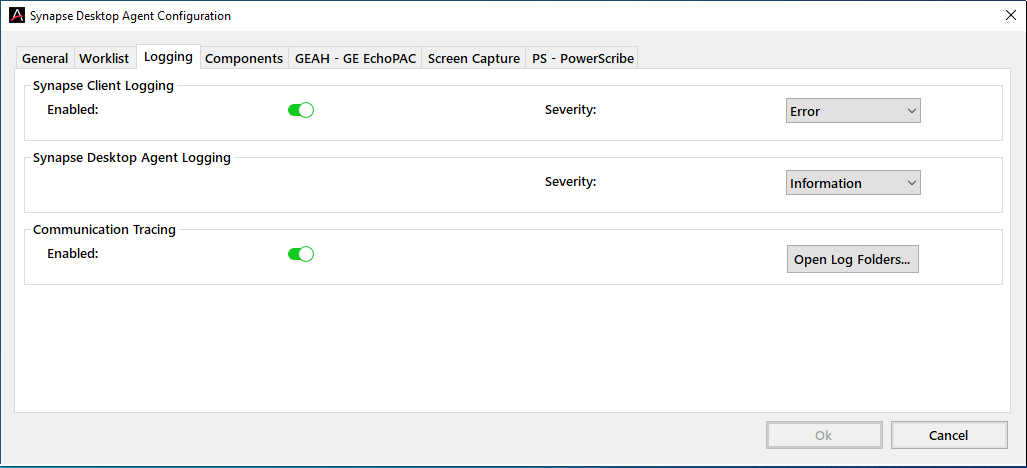
When enabled, Synapse Client Logging provides log files to diagnose errors when a connection to Synapse is lost. Synapse logs can be with four different severity levels. The log files are saved in:
C:\ProgramData\Fujifilm Medical Systems\Synapse\WebLogs
|
Note: |
Synapse Client Logging is disabled when Synapse VX is selected or when Use Local Messaging is disabled. |
Steps
- Click Enable.
- Click the Severity drop-down menu and select a level:
- Verbose - Log verbose information, warning, and error messages
- Information - Log information, warning and error messages
- Warning - Log warning and error messages
- Error - Log all errors (Default)
- Click Ok.
Synapse Desktop Agent Logging
Synapse Desktop Agent Logging is always enabled and provides log files to diagnose errors when a connection to the agent is lost. Synapse logs can be with four different severity levels. The log files are saved in:
C:\ProgramData\Fujifilm Medical Systems\Synapse\DesktopAgent\SynapseAgent.log
Steps
- Click Enable.
- Click the Severity drop-down menu and select a level:
- Verbose - Log verbose information, warning, and error messages
- Information - Log information, warning and error messages
- Warning - Log warning and error messages
- Error - Log all errors (Default)
- Click Ok.
Communication Tracing
When enabled, Communication Tracing logs Messages and MessageDetails log files. These files are saved in:
C:\ProgramData\Fujifilm Medical Systems\Synapse\DesktopAgent
Components
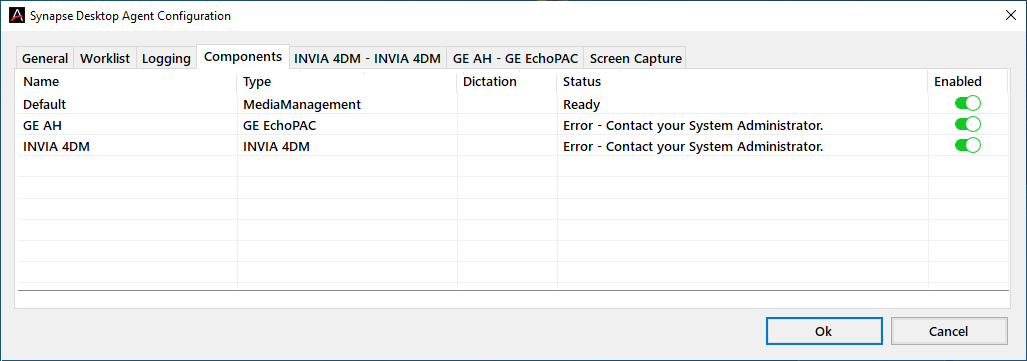
The Components tab lists the named plugin instances that are configured. It is possible to configure multiple instances of a specific type. Plugins are enabled in SWAT, Clients > Workstation > Integrations. The following columns display:
- Name - The name of the plugin instance. The name can be changed in SWAT.
- Type - The plugin type of the named integration.
- Dictation - Whether the named integration is communicating with a dictation system.
- Status - Whether the named integration is: ready, disabled, or in an error state.
- Enabled - Selector to enable or disable for the current user on the workstation.
|
Note: |
Cedars-Sinai Cardiac Suite and INVIA 4DM cannot be enabled at the same time. |
Screen Capture
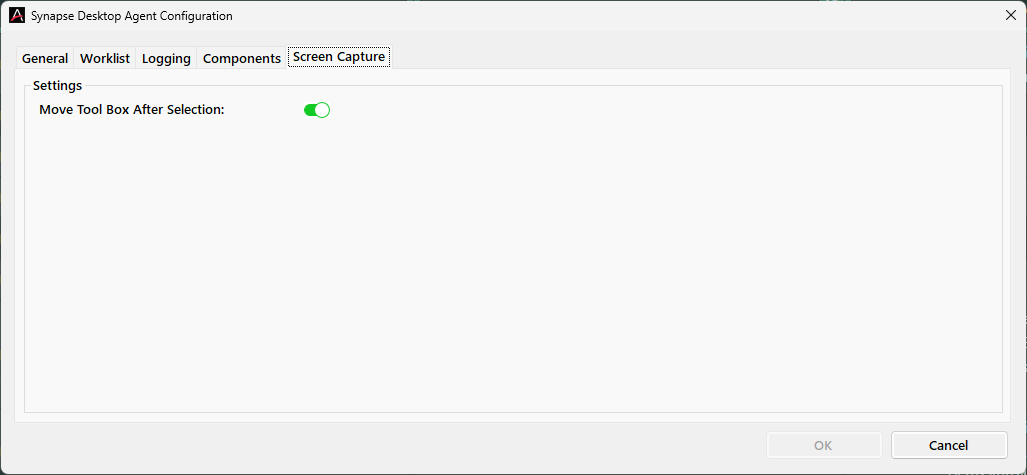
The Screen Capture tab allows you to enable the Move Tool Box After Selection function when doing a screen capture in Synapse.
PlugIn Detail Status
A Status Detail tooltip can be configured to display information about configuration or runtime error on a specific plugin instance. It is enabled with the following config:
<add key="ShowComponentTooltip" value ="true" />
Datasource
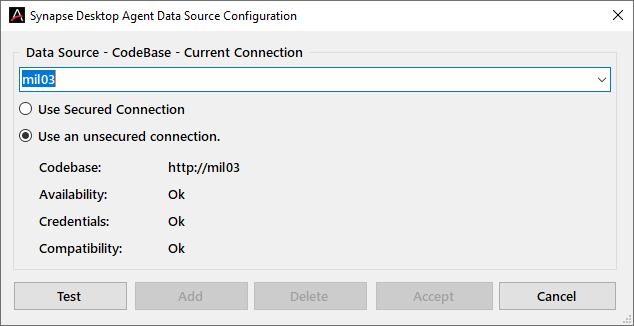
Typically, the Desktop Agent should only be configured to connect to a single datasource, that is the home datasource from which it was installed. However, it may be necessary to configure a second datasource.
Steps
- Right-click the Desktop Agent icon and select Data Source.
- This user interface is used to configure new datasource connections and to select the current datasource connection.
- To configure a new datasource, enter the server name in the combo box, and click Test. If the connection test succeeds, then click Add to add the datasource.
The Agent only allows connections to compatible Synapse versions.
Changing the Language
Steps
- To change the language for the user interface of the Desktop Agent, right-click the Agent’s icon in the system tray.
- Select a language from the Language menu item.