Snapshot Icon Options

Feature and Icon

Description

Snapshot

icon_save_Snapshot

  • Click the Snapshot icon to save a new Snapshot. Synapse automatically saves the Snapshot name using the date and time.
  • Use the Save Snapshot option to save the current layout and image properties to a Snapshot.
  • In the Worklist, the Snapshots icon indicates the presence of at least one Snapshot. Right-click to list the display states. Select a display state to view or click and drag the snapshot into a Collections folder.
  • See Viewer Toolbar Features for more information.

Snapshot Resume (Recall)

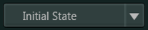
  • Select a Snapshot from the drop-down list and resume viewing it in the active viewport.
  • Note: This option is available only on the Viewer toolbar.

Edit Snapshot

  • Use to change the name of a Snapshot.

Delete Snapshot

  • Use to delete a Snapshot from Synapse.
  • Note: Auto-saved Snapshots cannot be deleted.

Related Topics

Saving Snapshots to a Folder

Adding Snapshots to a Synapse Chat Session

Configuring Image Display Settings

Adding Studies and Snapshots to a Collections Folder